AnythingLLM Guide & Resources
1. Login or Create an Account
To access Dojo, connect to your existing account or create a new one. We provide 2 ways to connect to your account:
2. Create a New AnythingLLM Service
Once logged in, navigate to the Services section on the left sidebar and click on Deploy my first service (or Create Service if your project already contains other services).
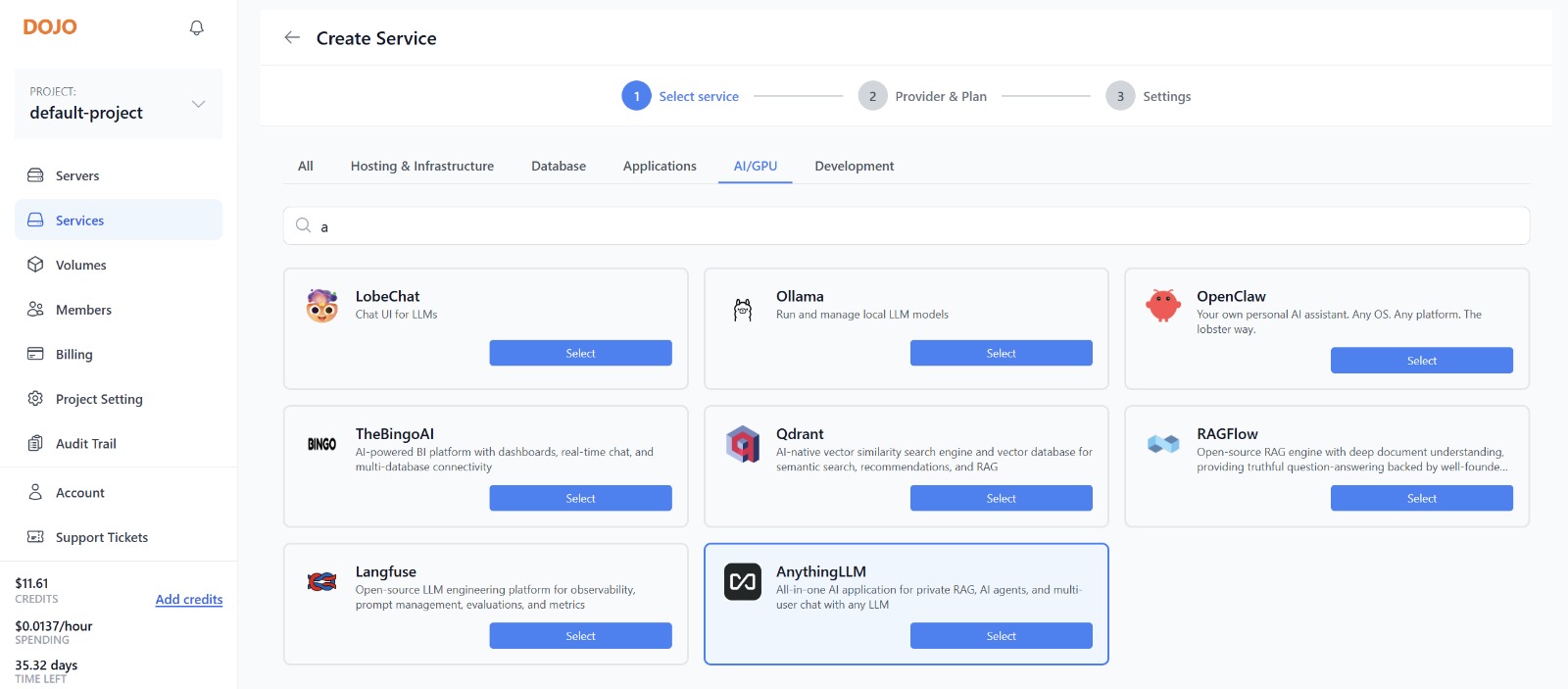
Search for AnythingLLM in the search bar or locate it under the AI/GPU tab, then click the Select button.
3. Hosting & Cloud Provider
Dojo offers fully managed deployments hosted on major cloud providers. You can choose from:
- Amazon Lightsail
- Amazon AWS
- DigitalOcean
- Custom Server / BYO Server
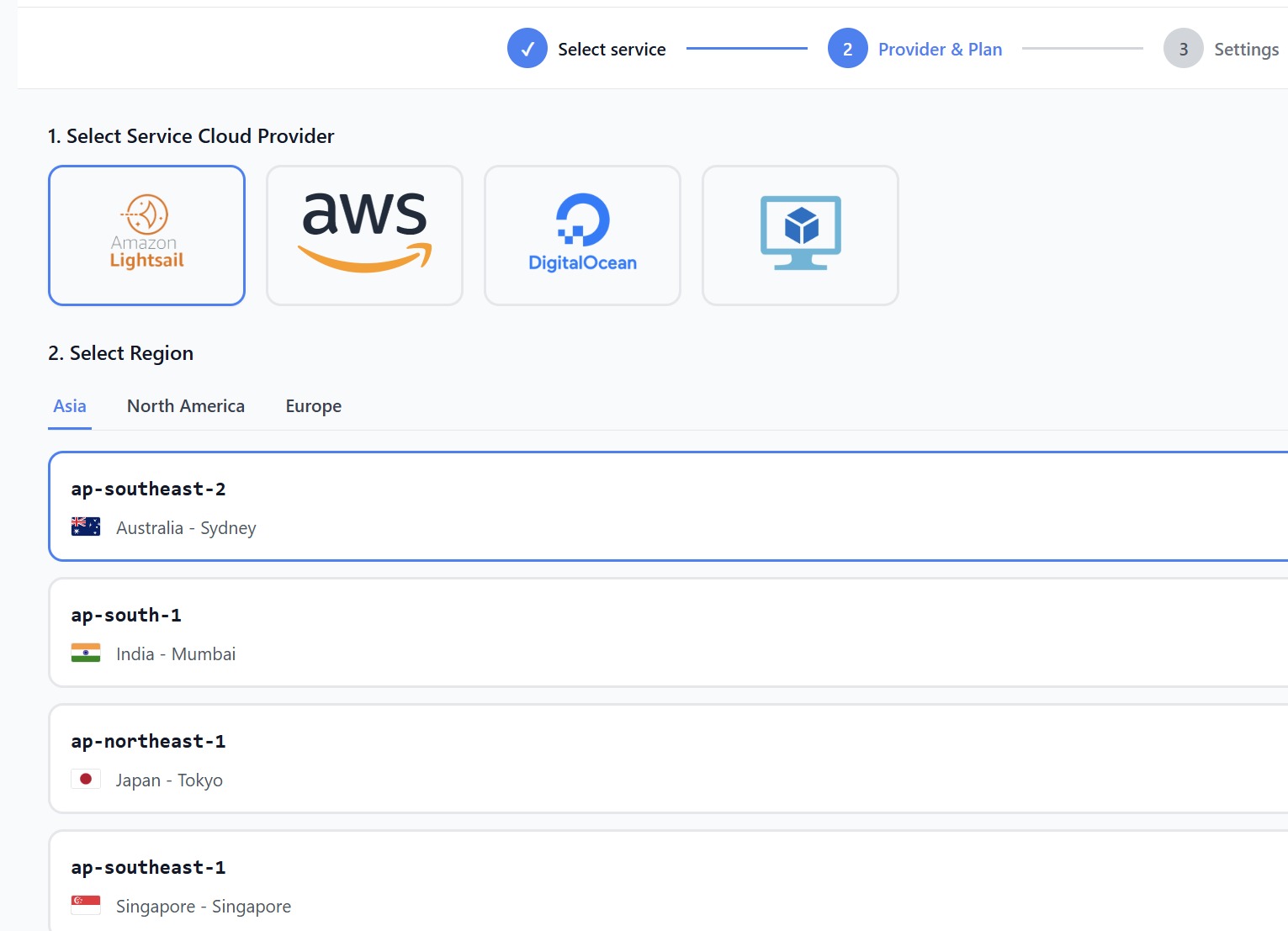
If you prefer to deploy resources directly to your own cloud account, Amazon AWS is available. Each cloud provider supports multiple regions across Asia, North America, and Europe (such as ap-southeast-2 Sydney, ap-south-1 Mumbai, ap-northeast-1 Tokyo, or ap-southeast-1 Singapore). Pick the region closest to you and your users to minimize latency.
4. Instance Resources & Plans
Select an instance plan that fits your performance needs:
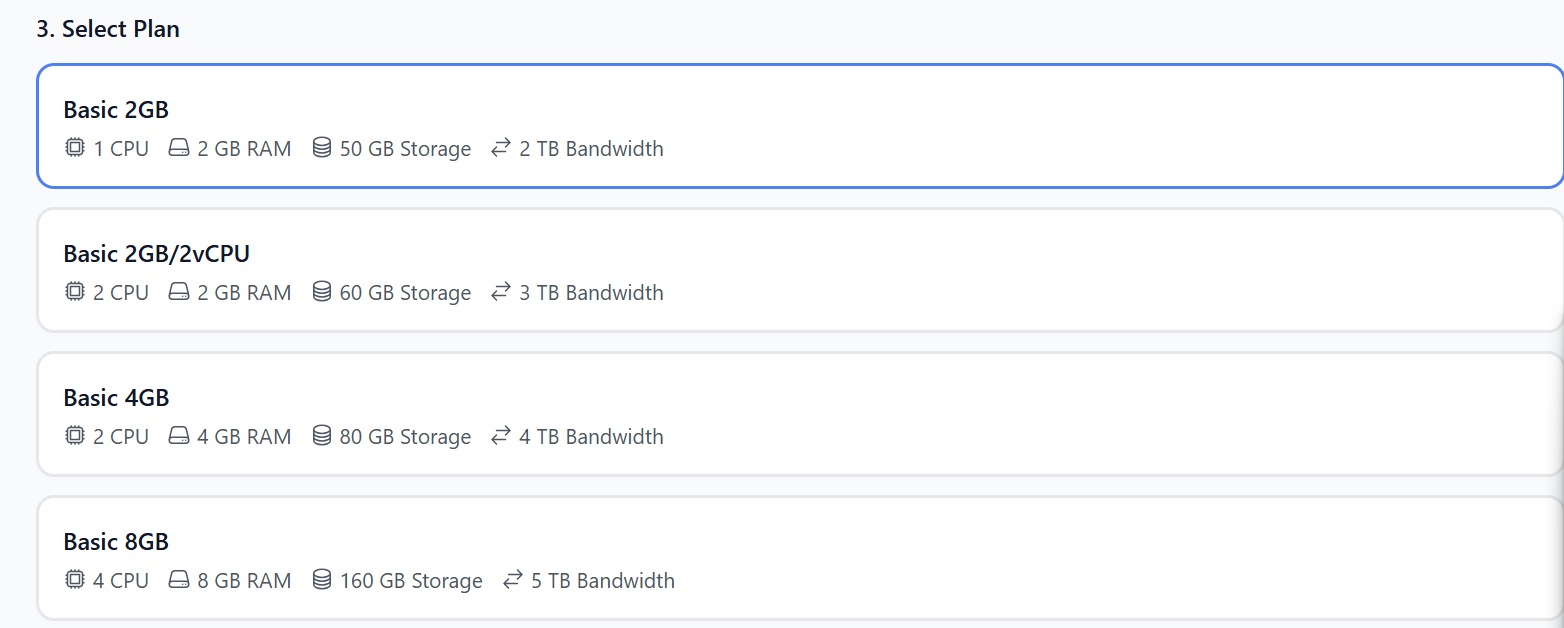
If a low-spec instance type isn't listed for AnythingLLM, it means it falls below the minimum required resource threshold. We restrict underpowered tiers so your RAG workflows and AI agent interactions run smoothly.
5. Support Plan
Choose from Dojo's tiered support levels based on your operational needs:
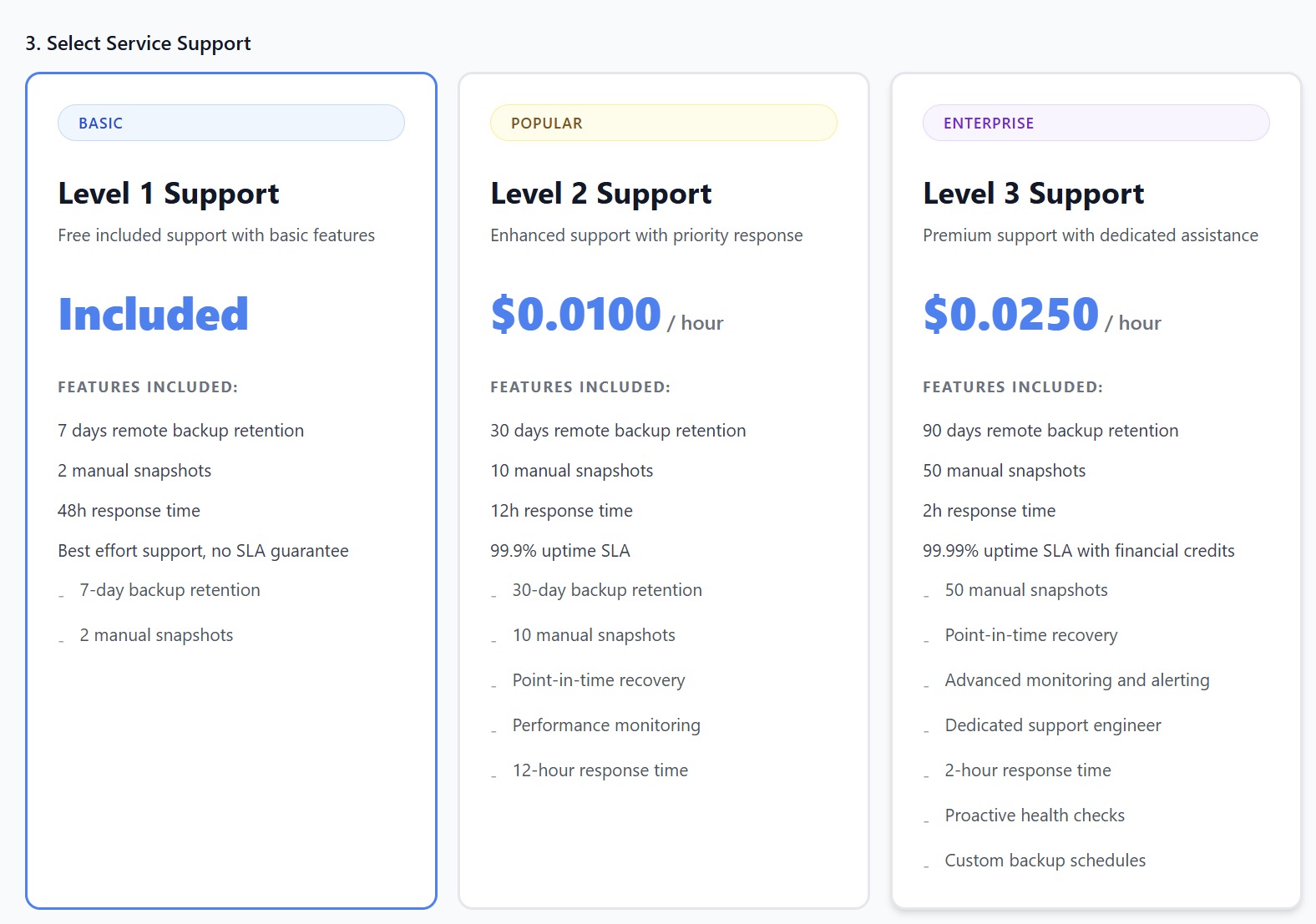
- Level 1 Support (Basic) — Included (Free)
- 7 days remote backup retention
- 2 manual snapshots
- 48h response time
- Best effort support (no SLA guarantee)
- Level 2 Support (Popular) — $0.0100 / hour
- 30 days remote backup retention & 10 manual snapshots
- 12h response time & 99.9% uptime SLA
- Point-in-time recovery & performance monitoring
- Level 3 Support (Enterprise) — $0.0250 / hour
- 90 days remote backup retention & 50 manual snapshots
- 2h response time & 99.99% uptime SLA with financial credits
- Point-in-time recovery, advanced monitoring/alerting, dedicated support engineer, custom backup schedules, and proactive health checks
6. Advanced Settings & Configuration
Under Settings, configure key service variables prior to launch:
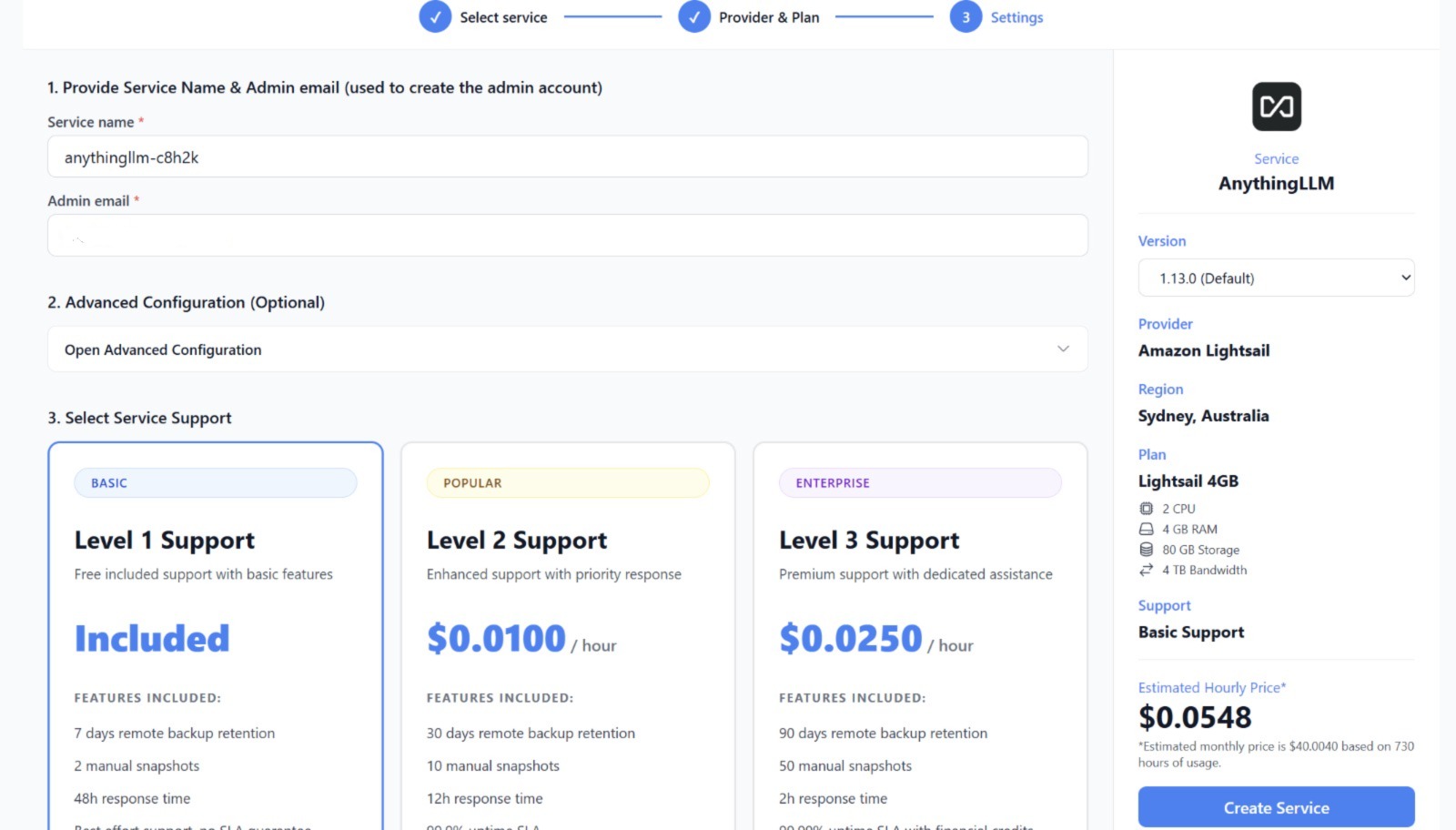
• Set a custom Service Name and Admin Email (used to generate your initial admin account). • Choose a specific Version tag (e.g., 1.13.0 (Default) or select another build). • Open Advanced Configuration to input optional credentials, provider API keys, or custom environment variables.
7. Review and Launch
Review your deployment configuration on the right sidebar—including version, cloud provider, region, plan type, and selected support tier. Your Estimated Hourly Price (and monthly projection based on 730 hours of usage) will be dynamically calculated. When ready, click Create Service. Dojo will provision the instance and install AnythingLLM automatically.
8. Start Using Your Service
Once provisioning completes, your AnythingLLM instance will show as active on your Dojo dashboard. Click into the service overview to retrieve access links and admin credentials.